- DATE:
- AUTHOR:
- The Balance team

Product Updates: October 2026
October’s releases give you more control over how and where your buyers pay, smoother onboarding for buyers and vendors, and easier reconciliation with your own systems.
Here’s what’s new.
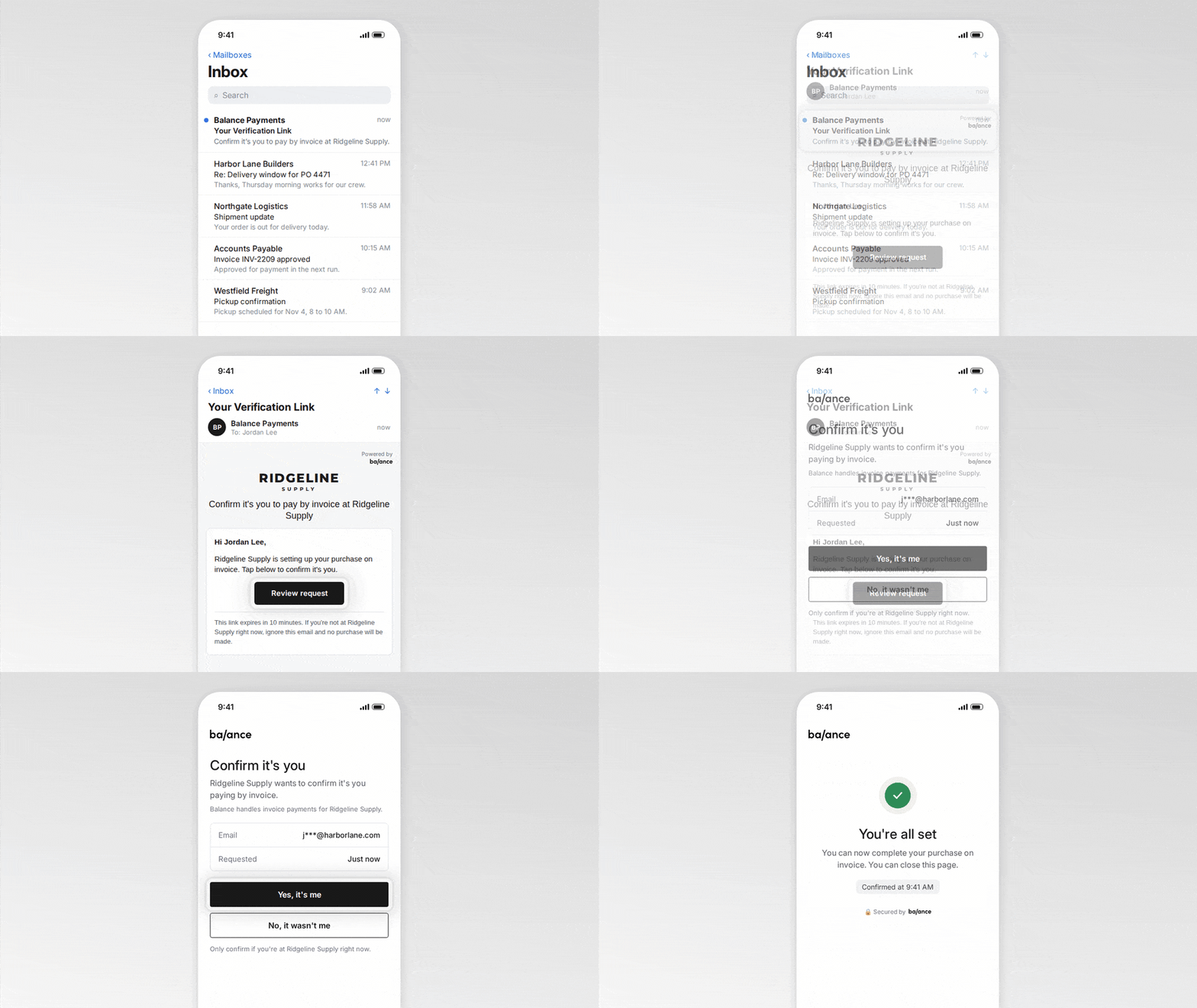
Confirm who’s buying at the register with magic link verification
Confirm that the person paying on Net Terms in person is an authorized user on the buyer’s account. At the register, your POS requests a verification link, and Balance emails it to the authorized user you select. That user confirms or denies the request on a Balance page, and you receive the result via webhook or API. Once confirmed, you get a verification code to attach to the transaction, as a record of which user approved it. Each link expires after 10 minutes, works only once, and is replaced if a new one is requested.
To set it up, see Send a verification link in the Balance API docs.
Auto-charge the payment method your buyer expects
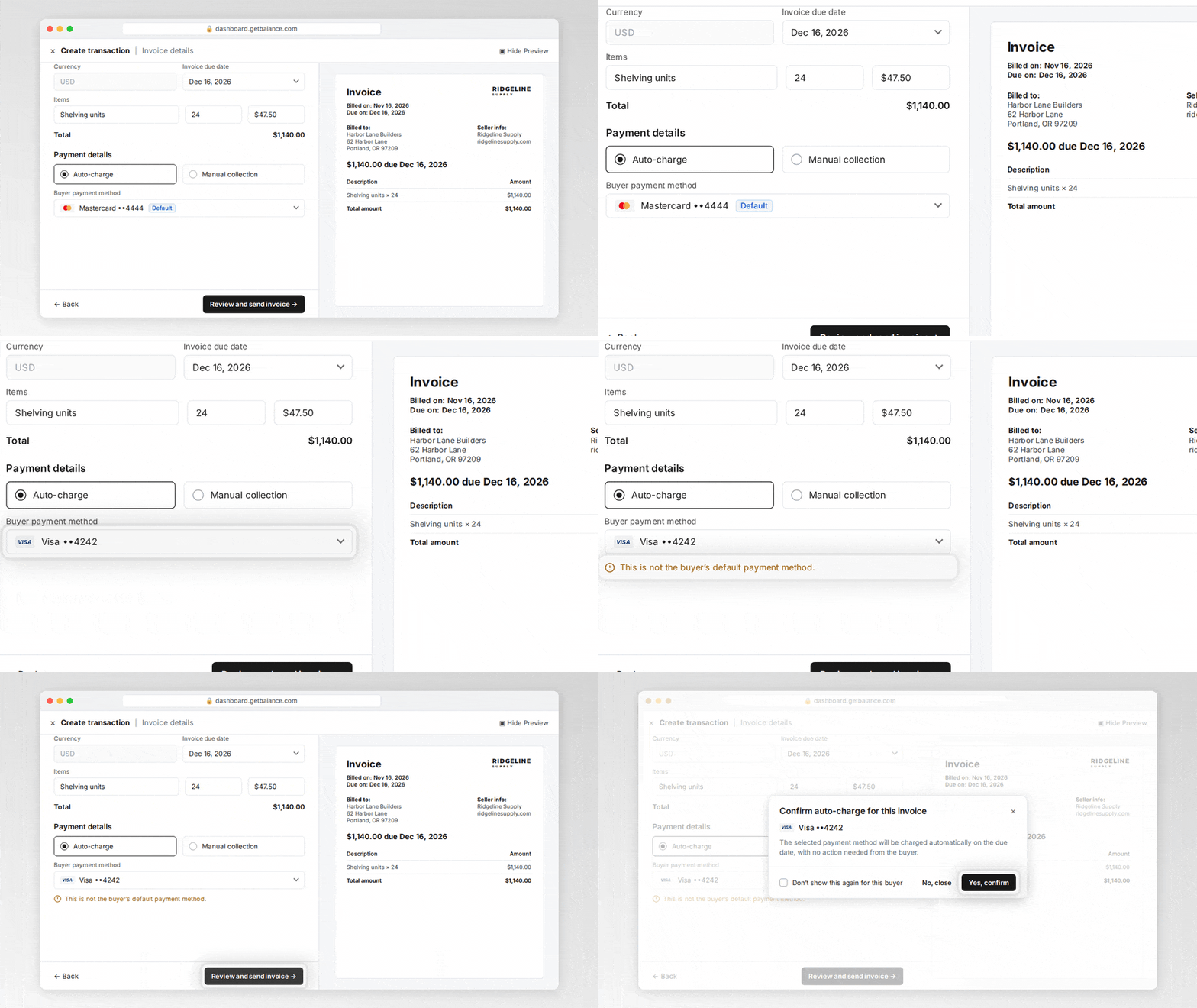
When you create an invoice with Auto-charge, your buyer’s default payment method is now selected for you. If you choose a different method, or the buyer doesn’t have a default, you’ll confirm before the invoice goes out, so buyers aren’t surprised by an unexpected charge.
Auto-charge and the buyer’s default payment method are pre-selected and tagged “Default.”
You'll see a warning if you pick another method, or turn on Auto-charge for a buyer with no default.
A quick confirmation shows which method will be charged on the due date, with no action needed from the buyer. You can still charge a non-default method. It’s just a deliberate choice now.
Skip the confirmation for specific buyers, and bring it back anytime in Settings > Payment settings.
Reconcile refunds, credit notes, and credit memos with your own IDs
Match every refund and credit in Balance to the right record in your own systems, so your finance team can reconcile without manual lookups. Through the Balance API, you can now:
Send your own reference ID with adjustments, credit notes and refunds. A reference on an adjustment carries over to the resulting credit note or refund.
Find refunds and credit notes by your reference ID.
Add your own metadata to credit memos, and search them by metadata or custom fields.
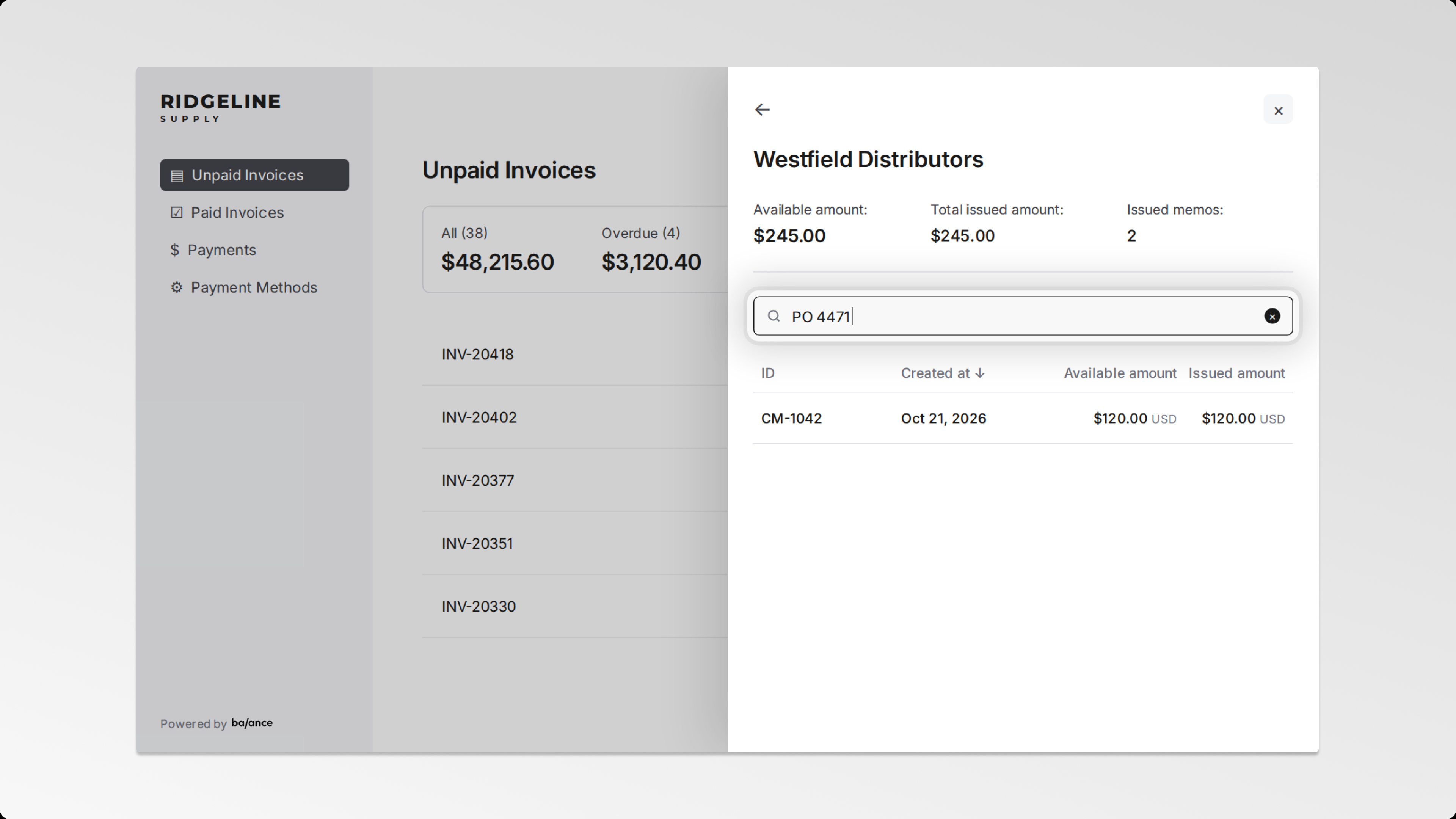
Add custom fields your buyers can see, such as a PO number or job name, so they can search for and apply the right credit memo in the Payment portal. You can add metadata and custom fields until a credit memo is applied to an invoice.
Keep more applicants moving through the bank connection step
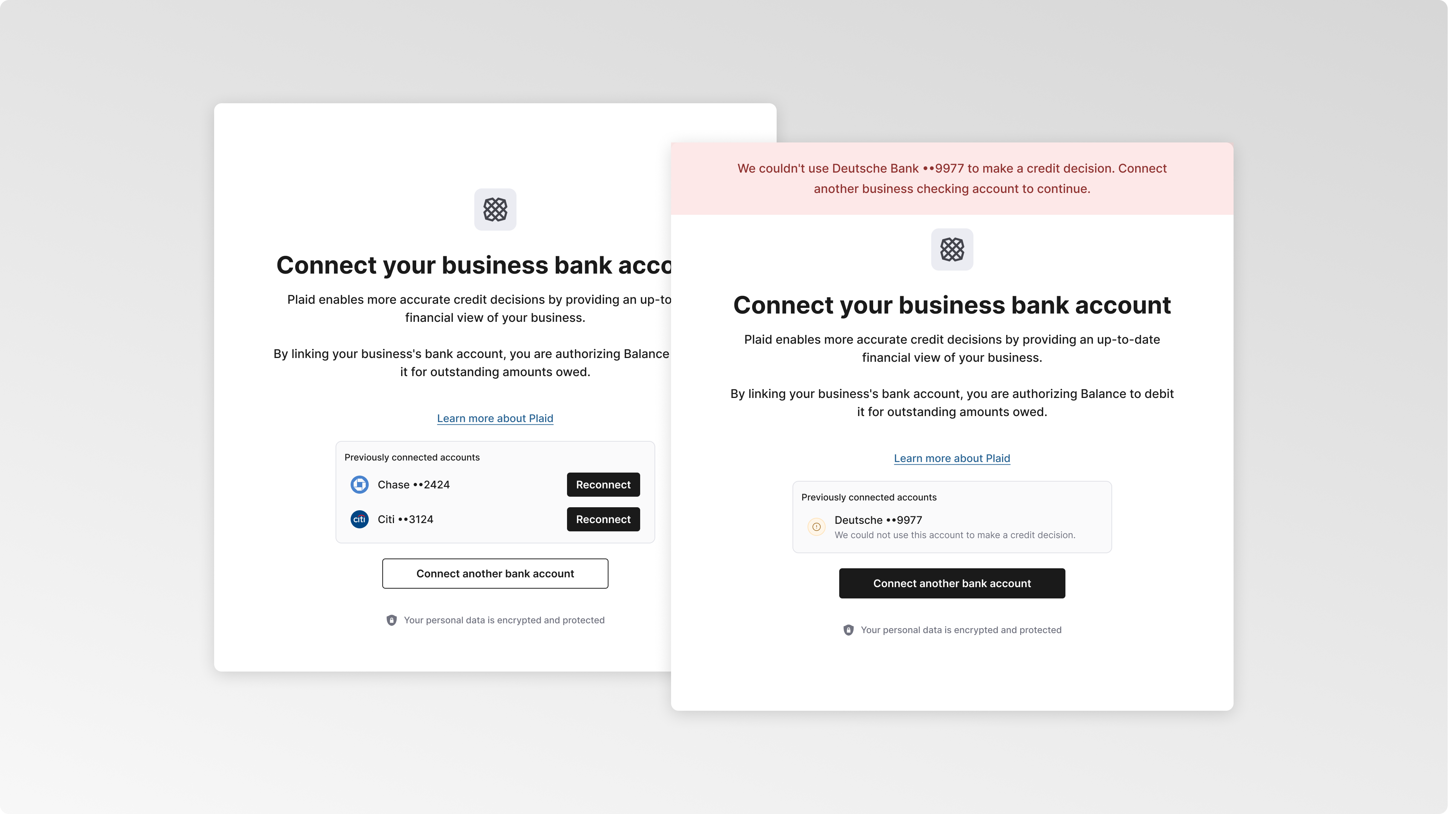
Keep applicants on track at the bank connection step, so more of them reach a decision. When an applicant has connected a bank in an earlier application, the bank step now shows it under “Previously connected accounts.” If that connection has broken, usually after a password change, a Reconnect button restores it in one click. When a connected account doesn’t qualify, the page explains why and guides the applicant to connect another bank account.
Keep buyers informed when their limit changes
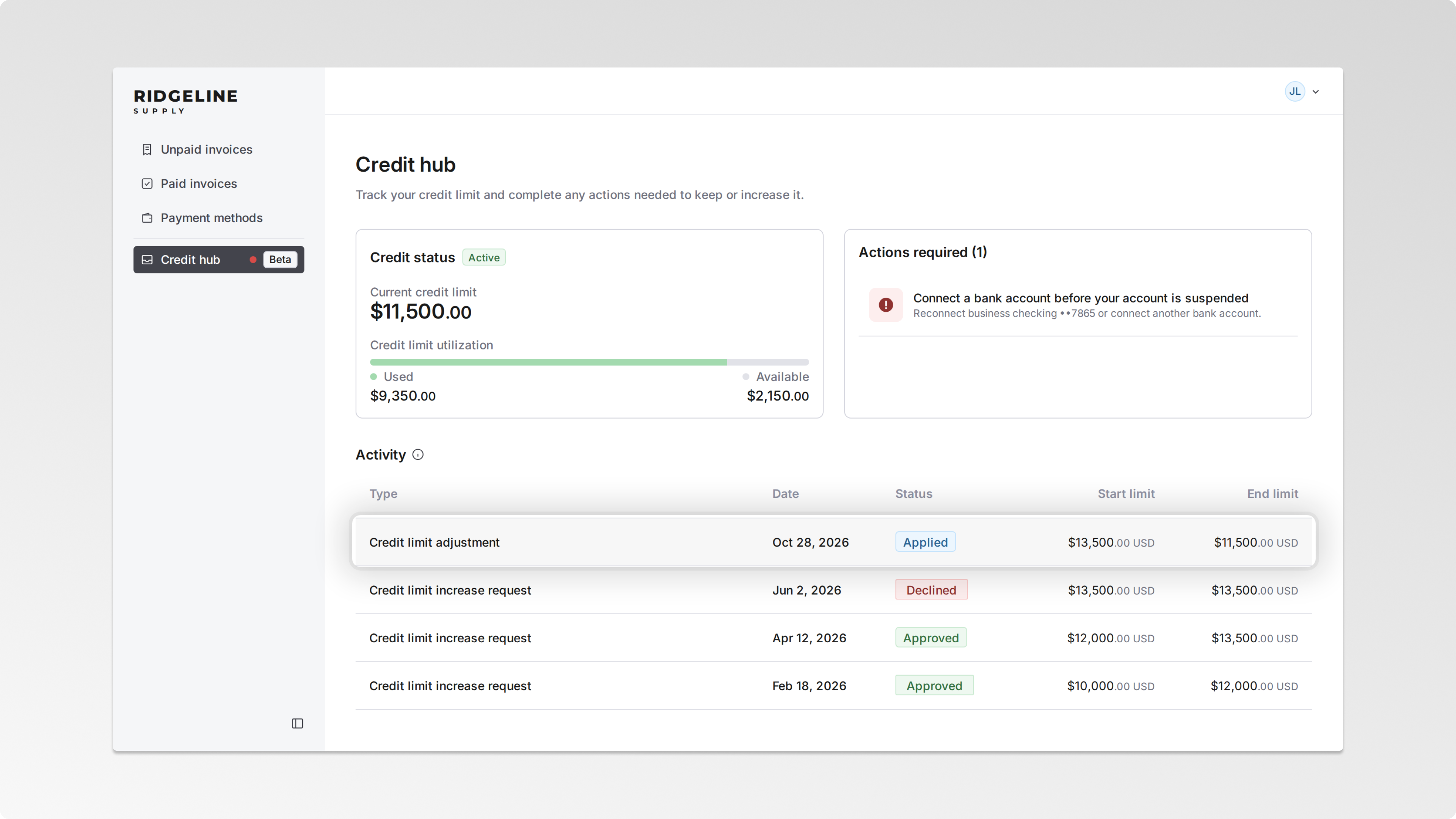
When Balance lowers a buyer’s limit, the buyer now gets an email explaining why in plain language, and the decrease appears as an adjustment in the Activity table of their Credit hub, in the Payment portal. Buyers see what changed and why.
Get vendors onboarded faster
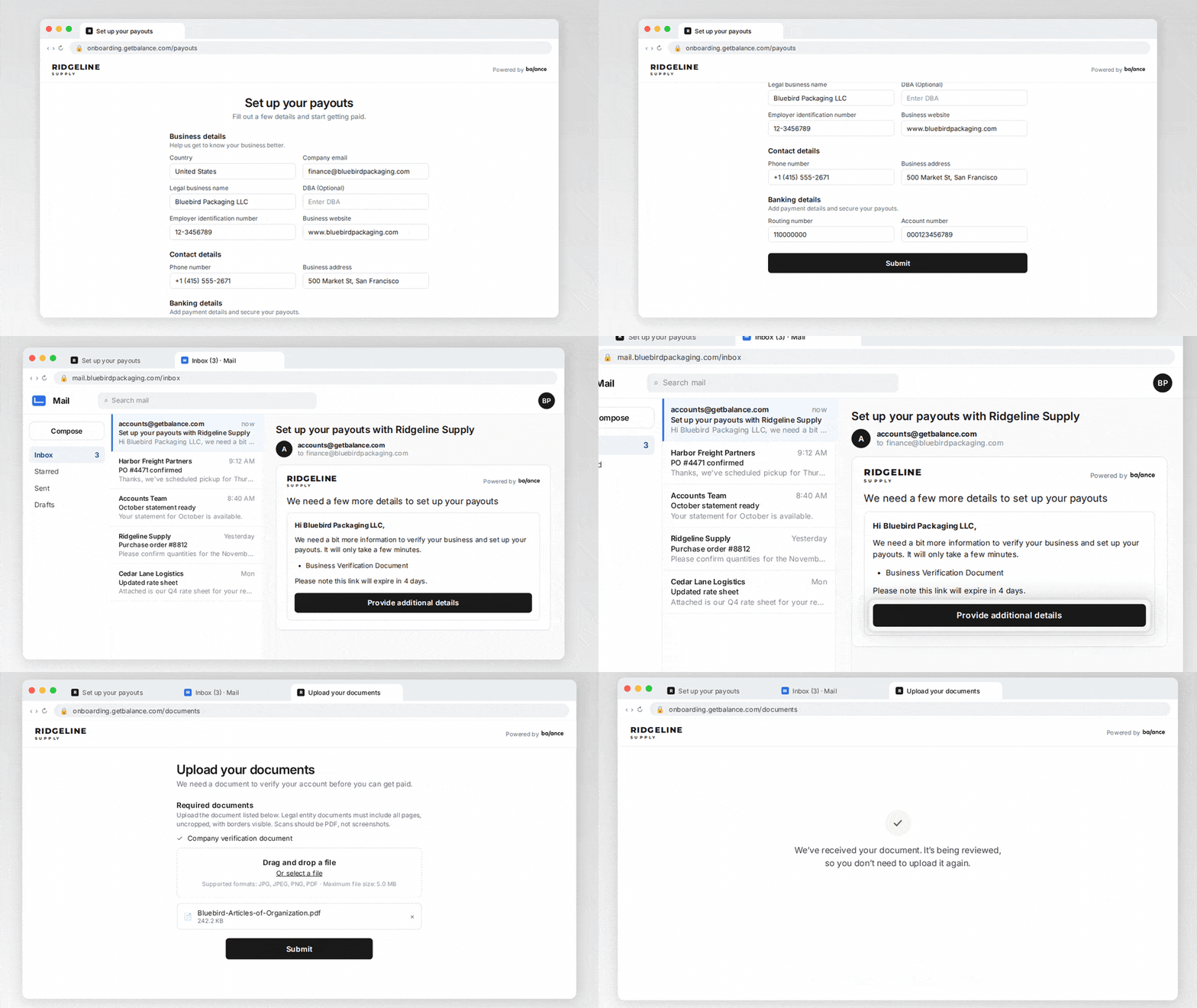
Vendors now complete onboarding with only their business, contact, and bank details. When a business verification document is required, Balance emails the vendor a secure link to upload the exact document needed, then handles the rest and keeps you notified along the way.
ADDITIONAL ENHANCEMENTS
A clean and easy-to-manage Sentinel review queue
Sentinel now opens a review only after a payment goes through, so attempts the card issuer declines no longer show up in your Review queue.
When someone picks up a review, they can mark it “Under Review,” so others know it’s being handled.
Each review now shows the vendor’s trade (DBA) name, so it’s easier to recognize.
Check a card’s full billing address from the Buyer page
The Buyer page in your dashboard now shows the full billing address in each card’s details.
Find restricted vendors in one filter
You can now filter the vendors table in your dashboard to show only restricted vendors, so you can quickly see who needs attention.